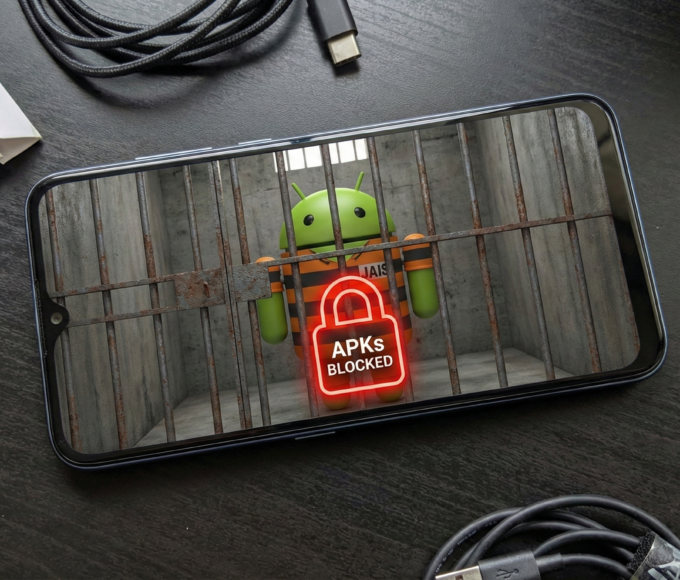



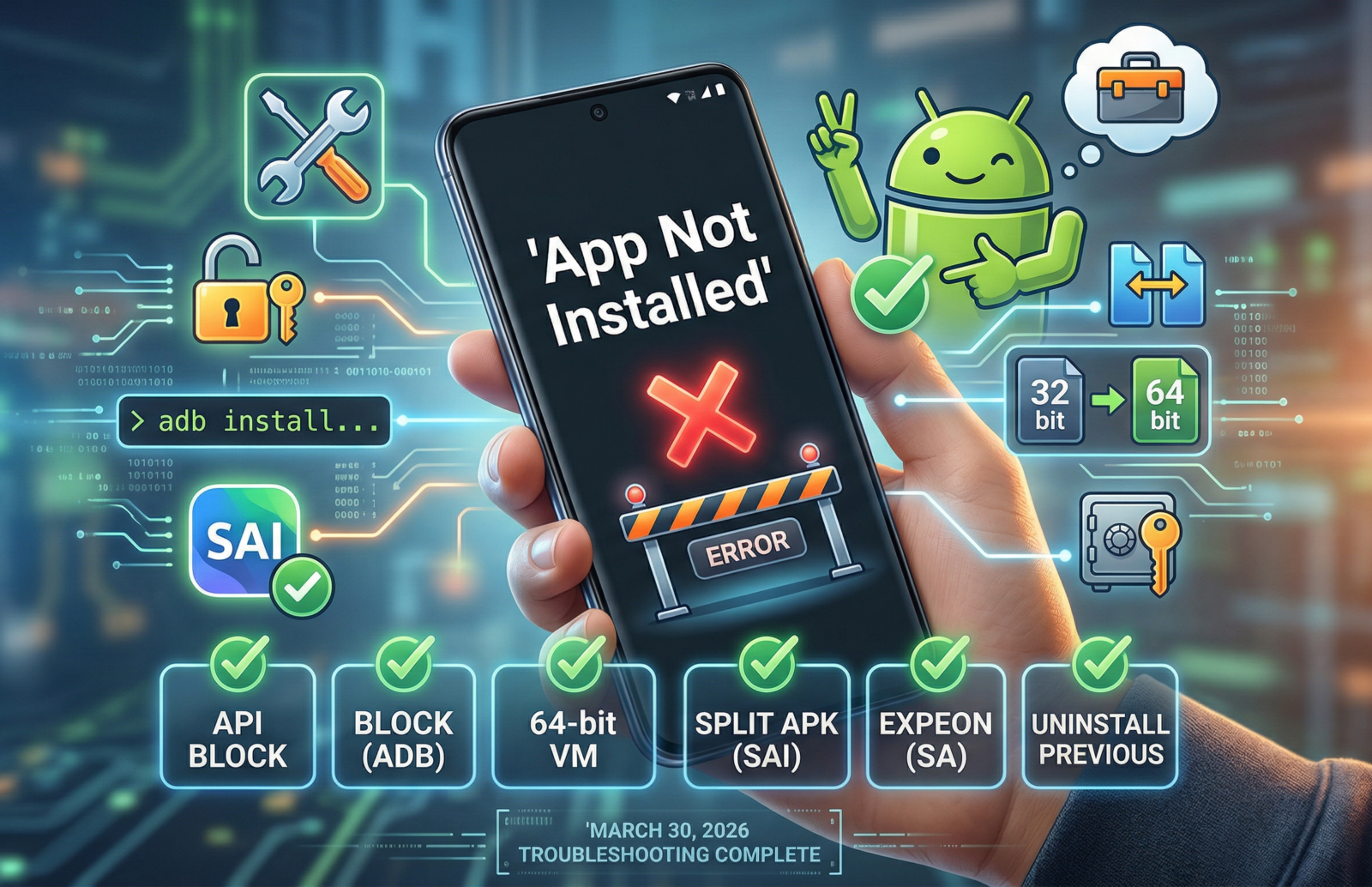
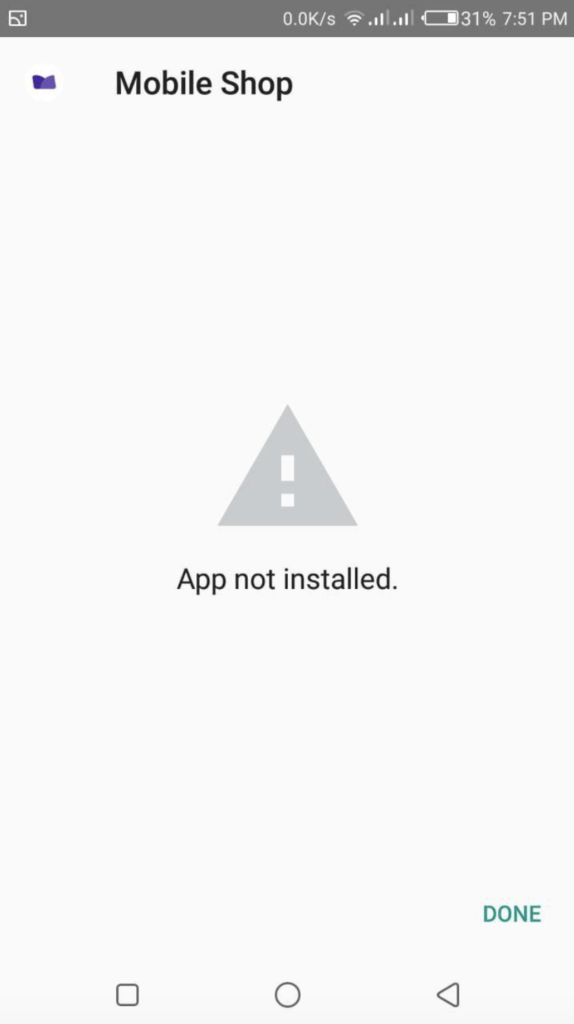
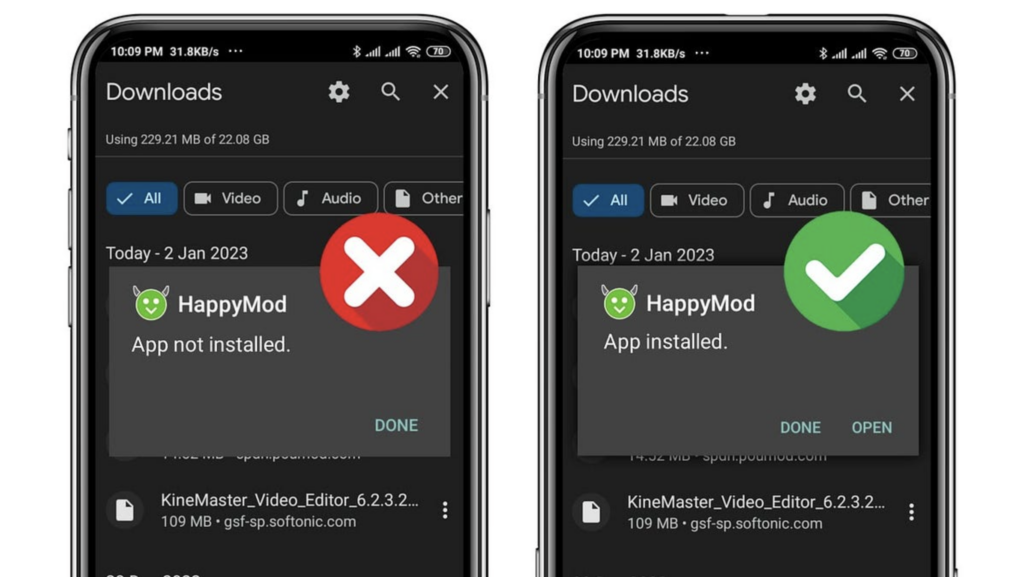
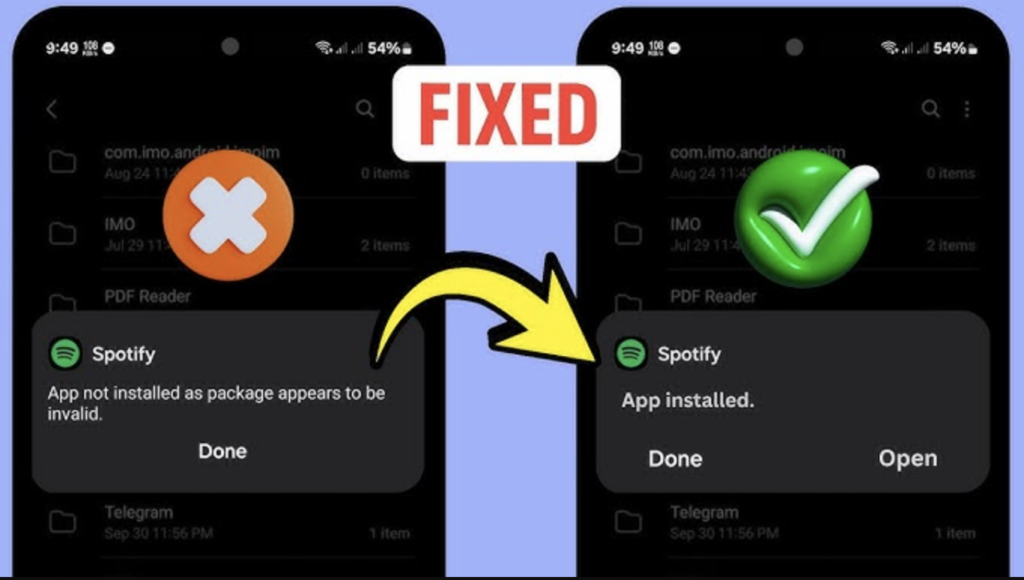
Ever stared at your phone screen in pure defeat because of those three little words? You downloaded the file, you granted your browser permission to install unknown apps, you tapped the prompt, and then… App Not Installed.
No explanation. No error code. Just a blunt rejection.
Sideloading in 2026 is practically an extreme sport. Between the strict security policies of Android 15 and 16, and the fact that modern smartphone processors have physically evolved past old software, hitting that error is more common than ever.
If your phone is stubbornly refusing to install an APK, put away the hammer. Here is the factual, modern troubleshooting guide to figuring out exactly why your phone is saying no, and how you can actually fix it.
1. The “Target SDK” Block (Android 15 & 16)
Google has been slowly purging ancient apps for years, but Android 15 introduced a hard wall. As of late 2025 and into 2026, the Android operating system will physically block the installation of any app that targets Android 6.0 (API level 23) or lower.
If you are trying to install a retro game or an abandoned utility app from 2015, the native package installer will just throw an “App Not Installed” or “Incompatible” error.
How to Fix It:
You cannot bypass this restriction using your phone’s standard settings menu. You have to use a computer and ADB (Android Debug Bridge).
- Enable USB Debugging in your phone’s Developer Options.
- Connect your phone to your computer and open a command terminal.
- Run this exact command to force the system to ignore the SDK block:
adb install --bypass-low-target-sdk-block filename.apk
“Attempting to install an application that targets an API level below 24 will trigger a security exception… there are no other means of bypassing the SDK block [without ADB].” – Android Enterprise Developers
2. The 32-Bit Hardware Graveyard
This is the hardest pill to swallow for Android power users. If you have a flagship phone from the last couple of years – anything running a Snapdragon 8 Gen 3, Snapdragon 8 Gen 4, or a recent Google Tensor chip – your phone is physically incapable of running 32-bit apps.
The processor manufacturers literally removed the hardware execution state required to read 32-bit code to make the chips faster and more efficient. If the developer never updated their APK to 64-bit (a requirement Google made for the Play Store years ago), it will never install on your modern device.
How to Fix It:
You cannot force a 64-bit processor to run 32-bit code natively. Your only workaround is to run a virtual environment:
- Download an Android virtual machine app (like VMOS) from the Play Store.
- Boot up the virtual “phone within your phone.”
- Install the old 32-bit APK inside that contained environment.
3. You Actually Downloaded a “Split APK”
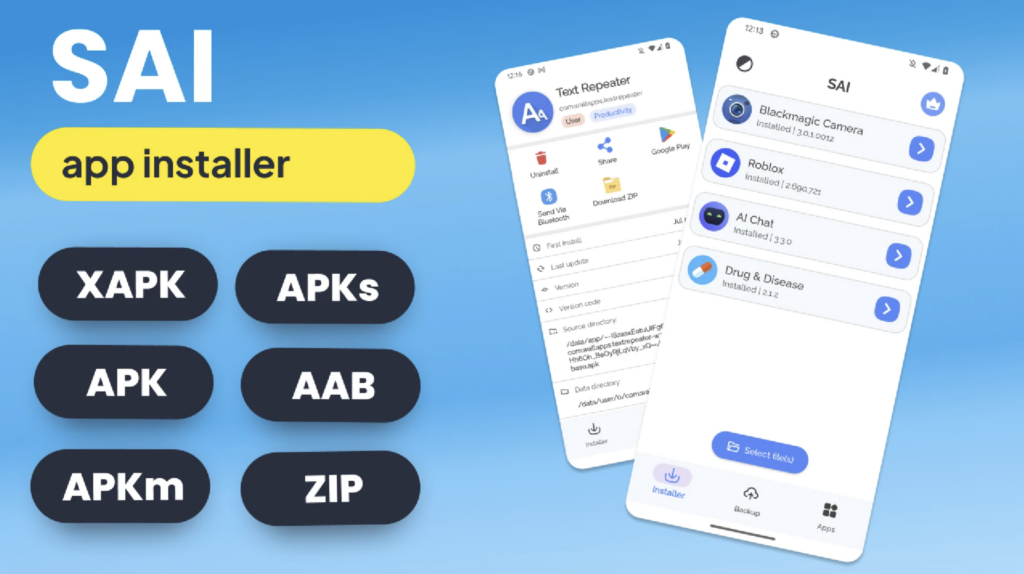
Take a close look at the file extension of the app you downloaded. Does it end in .apk, or does it end in .apks or .xapk?
To save space, developers now use Android App Bundles. Instead of giving you one massive file containing every language and screen resolution, the app is split into a “base” file and several smaller “config” files. If you just tap a raw Split APK in your downloads folder, the native Android installer will panic and fail.
How to Fix It:
You need a middleman to stitch the pieces back together.
- Go to the Google Play Store.
- Download a trusted package manager like SAI (Split APKs Installer).
- Open SAI, point it to your downloaded file, and let it assemble and install the app for you.
4. The Classic Signature Mismatch
Every Android app is signed with a cryptographic key by its developer. This is a security measure to prevent a hacker from pushing a fake update to your banking app.
However, if you are trying to install a modded version of an app you already use, or you are trying to “downgrade” an app by installing an older APK over a newer Play Store version, the cryptographic signatures or version codes will clash. The result? A swift “App Not Installed.”
How to Fix It:
- Back up any local data you have saved in the app, because you are about to lose it.
- Completely uninstall the current version of the app from your phone.
- Try installing your downloaded APK again.
Quick Reference: Why Did It Fail?
To save you some time, here is a quick diagnostic checklist based on your specific situation:
| Your Situation | Likely Culprit | The Solution |
| The app hasn’t been updated since 2015. | Target API Block | Use the ADB --bypass-low-target-sdk-block command. |
| You have a brand new 2026 flagship phone. | 32-Bit Incompatibility | Use an Android Virtual Machine app. |
The file name ends in .xapk or .apks. | Split App Bundle | Use a third-party app like SAI. |
| You already have a newer version installed. | Signature/Version Conflict | Uninstall the existing app first. |
Sideloading in 2026 takes a bit more effort than it used to, but with the right tools, Android is still the most open mobile operating system on the market. Just remember to only download APKs from trusted archives, keep your Play Protect turned on, and never ignore a legitimate malware warning.