



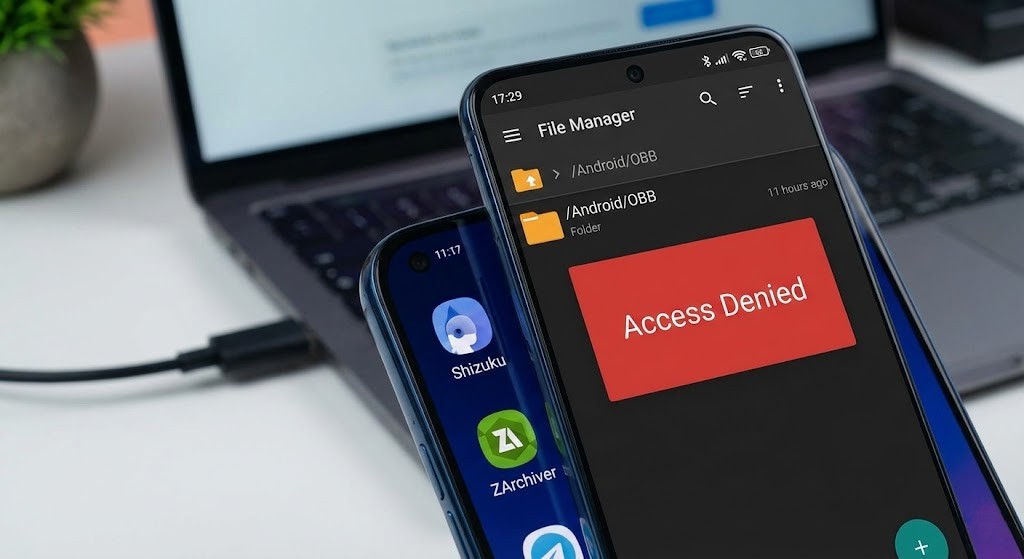
If you have tried to manually install a large game on your phone this week, you probably hit a brick wall. You downloaded the APK, you grabbed the massive OBB file, and you went to paste it into the /Android/OBB folder—only to be greeted by a blank screen or a rude “Access Denied” message.
Welcome to Android 16. Google has officially tightened the “Scoped Storage” restrictions to a point where even your trusty file manager looks broken.
The days of simply dragging and dropping files into system folders are gone. But don’t delete that 5GB game file just yet. The community has already found the workarounds, and they don’t require rooting your phone or voiding your warranty.
Here is how to reclaim your storage in 2026.
The “Files” Trick (No Installs Required)
Before you download extra tools, try the backdoor that Google left open. While the main “Files by Google” app blocks you from seeing inside the OBB folder, the hidden system-level file picker (often called DocumentsUI) still has permission—you just have to know how to find it.
How to do it:
- Go to Settings > Storage.
- Look for a menu option often labeled “Other” or “Trash”.
- In some Android 16 skins, you can trigger this by opening the Files by Google app, going to Settings > Other Storage, and tapping “Bug Reports”.
This launches a bare-bones, ancient-looking file manager. It’s ugly, but it has superpowers. Navigate to Android > OBB inside this window, and you should be able to paste your game files without the system blocking you.
The Power User Method: Shizuku + ZArchiver
If the trick above didn’t work (Samsung and Pixel phones patched it differently), you need the “Nuclear Option.” This involves two apps: Shizuku and ZArchiver.
Shizuku is a tool that uses your phone’s “Wireless Debugging” feature to grant other apps special system-level permissions without root access.
Step 1: Wake up Shizuku
- Install Shizuku from the Play Store.
- Enable Developer Options on your phone (tap Build Number 7 times).
- Turn on Wireless Debugging.
- Open Shizuku and hit “Pair”. Enter the code from your notifications.
- Once paired, tap “Start”. You are now running a mini-server on your phone.
Step 2: Unleash ZArchiver
Standard file managers like Solid Explorer often fail here, but ZArchiver has a special mode for this exact problem.
- Open ZArchiver settings.
- Go to “ROOT” settings.
- Change “Type of root access” to “Shizuku”.
Pro Tip: If ZArchiver asks for permission, grant it. Now, when you navigate to /Android/OBB, Shizuku will intercept the “Access Denied” command and force the folder open. You can copy, paste, and delete freely.
The “PC Anchor” Method
If doing this on a touchscreen feels like performing surgery with oven mitts, just use a cable.
Android 16’s restrictions primarily block apps on the phone from seeing these folders. They do not block a computer connected via USB.
The Workflow:
- Plug your phone into your PC or Mac.
- Select “File Transfer” (MTP) mode on the phone.
- Open the phone’s drive on your computer.
- Navigate to Internal Storage > Android > OBB.
You will see the folders perfectly fine. Drag your .obb file from your desktop directly into the folder. It is faster, safer, and 100% bypasses the mobile OS restrictions.
Which Method Should You Use?
Not sure which path to take? Here is a quick breakdown based on your patience level.
| Method | Difficulty | Success Rate | Best For |
| PC Cable | Very Low | 100% | Moving huge files (10GB+) quickly |
| Shizuku + ZArchiver | High | 95% | Sideloading often without a PC |
| System “Files” Trick | Medium | 50% | Quick fixes (depends on phone brand) |
| FV File Manager | Medium | 90% | Users who want an all-in-one app |
Why Is Google Doing This?
You might be wondering why Google hates your freedom. The official reason is “Scoped Storage,” a security feature designed to stop sketchy apps from reading data belonging to other apps.
In the old days, if you gave a flashlight app permission to read your storage, it could theoretically scan your banking app’s data folder. Android 16 locks each app into its own sandbox. The side effect? legitimate file managers get locked out, too.
So, the next time you see that “Access Denied” popup, don’t panic. You aren’t banned; you just need better tools.